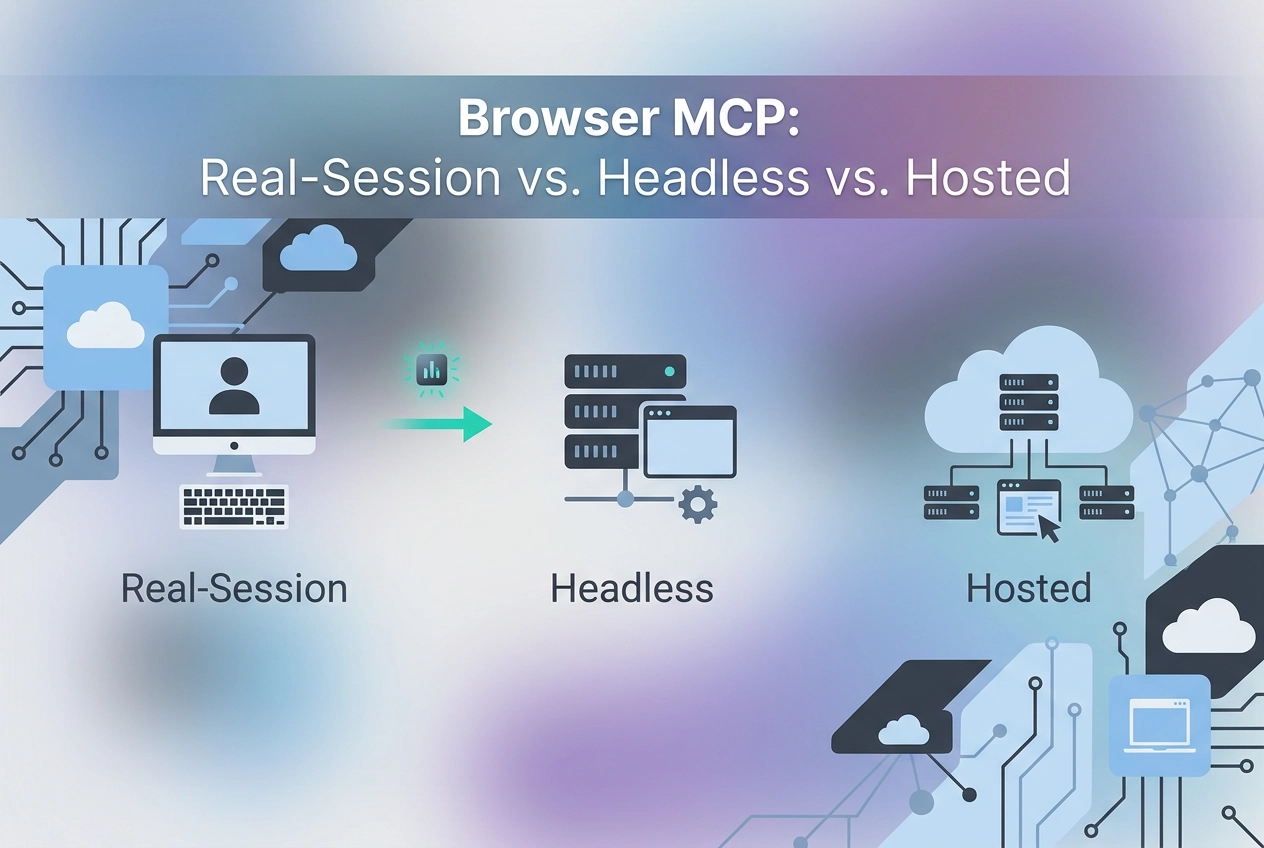
Most browser automation breaks the moment a login wall, CAPTCHA, or session cookie check appears. Headless tools run blind to the real browser state, and that gap between "works in testing" and "fails in production" costs serious development time. This is exactly the problem browser MCP was built to solve.
Browser MCP refers to a Model Context Protocol server category that gives AI agents direct control over web browsers, turning natural language instructions into reliable, authenticated browser actions. Agent360's implementation has pulled ahead of the field, reaching 100,000 Chrome Web Store users and a 4.8 out of 5 rating across 720 reviews, largely because it operates inside real Chrome sessions with cookies and 2FA intact rather than spinning up isolated headless instances.
This post breaks down how browser MCP actually works, where headless approaches hit their limits, and how four distinct implementation approaches compare across real-world use cases. You will also find a practical walkthrough covering installation, hosted MCP tool integration, and the capability checklist you should run before committing to any browser automation stack.
What Browser MCP Actually Does
A browser MCP server exposes browser control as callable tools inside any MCP-compatible client. The agent issues a tool call, such as navigate, click, or extract_text, and the server executes it against a live browser instance, then returns the structured result. The protocol contract is identical to any other MCP server: list tools, call a tool with parameters, receive a result or error.
Two deployment models exist, and the difference matters more than it might appear.
Local deployment pairs a Chrome extension with a locally registered MCP server process. The server runs on your machine, the extension hooks into your actual Chrome session, and your client config points to that local process.
Hosted deployment is an HTTP endpoint you paste directly into your client config. No extension, no local process. The endpoint is already running; the client connects over Streamable HTTP.
The deployment model determines three things: session context (does the browser carry real user cookies?), setup friction (how many steps before the first tool call works?), and what walls the agent can pass through (CAPTCHA, 2FA, anti-bot detection). Those three factors drive most of the real-world tradeoffs this article covers.
If you are new to MCP itself, the official spec at modelcontextprotocol.io is the right starting point. For a walkthrough of how the protocol executes tool calls end to end, How an MCP Server Works, Step by Step covers the mechanics in detail. This article assumes you are past that and are comparing implementations.
Why Headless Automation Fails on Specific Walls
The deployment model you choose determines what your agent can reach. Headless tools run into walls that have nothing to do with code quality.
What headless browsers lack by design
Playwright and Puppeteer spawn a fresh browser process on every run. That process has no cookies, no session history, and no registered device fingerprint. It arrives at a website as an unknown entity with a clean slate.
In practice, fresh headless instances consistently fail Cloudflare, DataDome, and similar bot-detection checks. These services look beyond the user-agent string, and a headless client with no accumulated session history fails their checks before it renders a single page.
CAPTCHA services compound the problem. In practice, sessions with no prior browsing signals are routinely classified as bots by reCAPTCHA and hCaptcha. Solving the visual puzzle is not the bottleneck; the missing behavioral baseline is.
Two-factor authentication adds a third wall. A fresh headless instance carries no existing authenticated session, so the auth challenge fires regardless of what credentials the agent supplies.
Where real-session browser MCP differs
Agent360's Browser MCP routes control through an existing Chrome session. That session already carries the user's cookies, device registration, and authentication state. When the agent navigates to a gated page, the request arrives with the same trust signals the human user established. Anti-bot checks pass because the session is the authenticated user.
The constraint is worth stating plainly, and auth friction is a production blocker nobody names directly: this only holds if the human has already authenticated that specific Chrome profile. A fresh profile carries none of those signals. It will not bypass 2FA any more than a headless browser would.
Comparison: Four Browser MCP Approaches

With session context established as the core variable, here is how the four main approaches compare.
Agent360 Browser MCP | BrowserAgent | Playwriter | Moltline Hosted Servers | |
|---|---|---|---|---|
Session type | Real Chrome, user cookies + 2FA | In-browser, no documented persistence | Headless-first | N/A, not browser control |
CAPTCHA handling | Yes | No | No | N/A |
Tools exposed | 40 | Limited, not published | Not published | 160 across 22 servers |
Local vs. hosted | Local extension + server | Local | Local | Hosted HTTP endpoint |
Signup required | No | No | No | No (110 free tools) |
Autonomous payment | No | No | No | HTTP 402 / x402 |
Agent360 Browser MCP is the most capable option for authenticated targets. It runs real Chrome sessions with the user's cookies and 2FA intact, exposes 40 tools including CAPTCHA solving and multi-session tab groups, is Moltline Free Skills License, and runs locally.
BrowserAgent handles simple, open sites. It has no published capability matrix, so limitations are undocumented. Rated 4.2/5.
Playwriter is rated 4.7/5. Headless-first means it works on open sites but will fail on the same anti-bot walls described in the previous section.
Moltline's 22 hosted servers sit on a different axis entirely. They are not browser control. They expose 132 tools at mcp.moltlinestudio.com/<server>, require no extension or local process, and 110 tools are free with no signup or API key. The /api endpoint issues an HTTP 402 / x402 challenge for autonomous on-chain settlement by agents with x402 support.
The next section maps those differences to concrete decisions.
When to Use Each Approach
The comparison above shows what each tool does. This section maps those capabilities to the decision you actually face.
Use Agent360 when the target site enforces CAPTCHA, 2FA, or anti-bot fingerprinting. Headless tools fail those walls by design; Agent360's real Chrome session carries your cookies and device registration, so it passes checks the others cannot. Also choose Agent360 when you need multi-session tab group support, when local-only operation is a hard requirement, and when you can absorb the setup of installing the Chrome extension and registering a local server.
Use BrowserAgent when the target is a simple, open site with no session-sensitive walls and your primary constraint is cost.
Use Playwriter when you already have Playwright-based workflows and want MCP-compatible tooling without rewriting them. It fits open sites that do not use anti-bot detection.
Use Moltline hosted servers when you need tool breadth, not browser control. API lookups, data processing, file handling, and utility operations do not require a browser at all. Paste an endpoint from mcp.moltlinestudio.com/<server> into your config and 110 tools are available immediately with no signup and no local process.
Use Moltline alongside Agent360 when your agent needs both. Agent360 handles the UI layer; Moltline handles downstream operations. No additional local processes are required on the Moltline side. For a deeper look at how that pairing fits a production stack, see Moltline Studio: Transparent Infrastructure for AI Builders.
Use Moltline's /api HTTP 402 endpoint when the agent itself needs to discover and pay for premium tools on-chain. No human authorization step is required; the agent resolves the x402 challenge and settles autonomously.
Installing Agent360 Browser MCP
Once you have decided Agent360 is the right tool, setup takes three steps.
Step 1: Install the Chrome extension. Search the Chrome Web Store for "Browser MCP Automate your browser" or go directly to browsermcp.dev. Install and pin it to your toolbar.
Step 2: Register the local MCP server in your client config.
For Claude Code, add this to your MCP config:
{
 "mcpServers": {
 "browser": {
 "command": "npx",
 "args": ["@agent360/browser-mcp"]
 }
 }
}
For Cursor, paste the same object into .cursor/mcp.json. The Wiring an Image MCP Server into Claude Desktop or Cursor walkthrough covers the mechanics of editing that file if you have not done it before.
Step 3: Restart the client. The server process does not reload config on the fly. Skip the restart and the tools will not appear.
Verify the connection. Ask the agent to open any URL and return the page title. A correct title confirms the extension and the local server are talking. A timeout or tool-not-found error points to a config typo or a skipped restart.
Known limitation. The extension runs inside whichever Chrome profile is active when it loads. That profile must already be authenticated to your target site. As noted above, a fresh or secondary profile strips session cookies and behaves identically to headless.
Adding Hosted MCP Tools Alongside Browser Control
Agent360 covers the UI layer: navigation, clicks, form fills, and scraping against live authenticated sessions. Once the agent has that data, it needs somewhere to send it. That is where hosted MCP servers come in.
Add a second entry to your mcpServers config pointing at a Moltline endpoint. No command, no local process, no extension to install:
{
 "mcpServers": {
 "browser": {
 "command": "npx",
 "args": ["@agent360/browser-mcp"]
 },
 "moltline-fetch": {
 "url": "https://mcp.moltlinestudio.com/fetch"
 }
 }
}
The agent now has browser control and hosted tooling in one config file, within one agent loop. A concrete example: Agent360 scrapes a protected dashboard page using the authenticated Chrome session; the agent then calls a Moltline tool to parse or transform the extracted data. No intermediate script, no manual handoff.
All twenty-two endpoints follow the same pattern: https://mcp.moltlinestudio.com/<server>. Paste one, restart your client, and the tools are available.
110 tools remain free with no signup (as noted above).
The remaining 50 tools require a $19/month All-Access licence, payable in cryptocurrency. The /api endpoint issues an HTTP 402 x402 challenge for autonomous on-chain settlement, details in the Comparison section above.
Capability Transparency: What to Check Before You Commit
Before committing config changes, check what each server actually documents about its limits.
Agent360 publishes a capability matrix at browsermcp.dev/docs/capability-matrix/ that labels every feature as "measured," "by design," "not yet," or "won't." Read it before wiring the server into any production agent. The four-state taxonomy tells you not just what works, but why something doesn't, and whether it ever will.
Most other browser MCP tools publish no equivalent. Limitations surface during integration or at runtime, which is the most expensive place to find them. A wall you discover in production costs more than one you read about in a doc.
For hosted servers, Moltline uses MCPize audit grades ranging from A+ to B+. Each server has a public result URL you can open before touching your config. The grade reflects technical structure, not marketing claims. What the Practitioner-Tooling Layer Actually Checks explains what the audit actually inspects, which is worth reading if you want to understand what a grade represents before using it as a filter.
The practical rule is simple: check the capability matrix or audit grade before adding any MCP server to a production agent config, not after the first runtime failure.
Takeaways
With the transparency checks done, here is where each decision lands.
CAPTCHA, 2FA, and anti-bot walls: Install the Chrome extension, register @agent360/browser-mcp in your config, then ask the agent to return a page title. If the title comes back correctly, the extension and server are wired up and your authenticated session is live.
Tool breadth beyond browser control: Add a Moltline endpoint to the same config file. No extension, no local process, no signup. Ninety-two tools are available the moment you paste the URL. The approach behind this is explained in Zero Friction as an Architectural Choice, covering why removing account gates is a deliberate design decision rather than a free-tier marketing move.
Autonomous payment: If the agent needs to discover and pay for tools without a human authorizing the transaction, mcp.moltlinestudio.com/api serves an HTTP 402 x402 challenge. No other tool in this comparison documents an equivalent on-chain settlement path.
Before production: Read the Agent360 capability matrix and pull the MCPize grade for any hosted server before adding it to production config.
Conclusion
Choosing the right browser MCP comes down to three questions: Does your target site block headless browsers? Do you need tools beyond browser control? Does your agent need to transact autonomously?
For authenticated, anti-bot-resistant browsing, Agent360 with a real Chrome session is the clear answer. For broad tool access without friction, a hosted endpoint like Moltline delivers immediately. For autonomous payment flows, x402 support is the only documented path that removes the human from the loop.
The cost of a wrong choice is not just a failed demo; it is a production incident that traces back to assumptions made before the first line of config was written.
Start with the capability matrix. Audit your hosted servers. Test with a simple page title request before scaling. Agents that are built on verified foundations ship faster and break less. Verify first, then build.