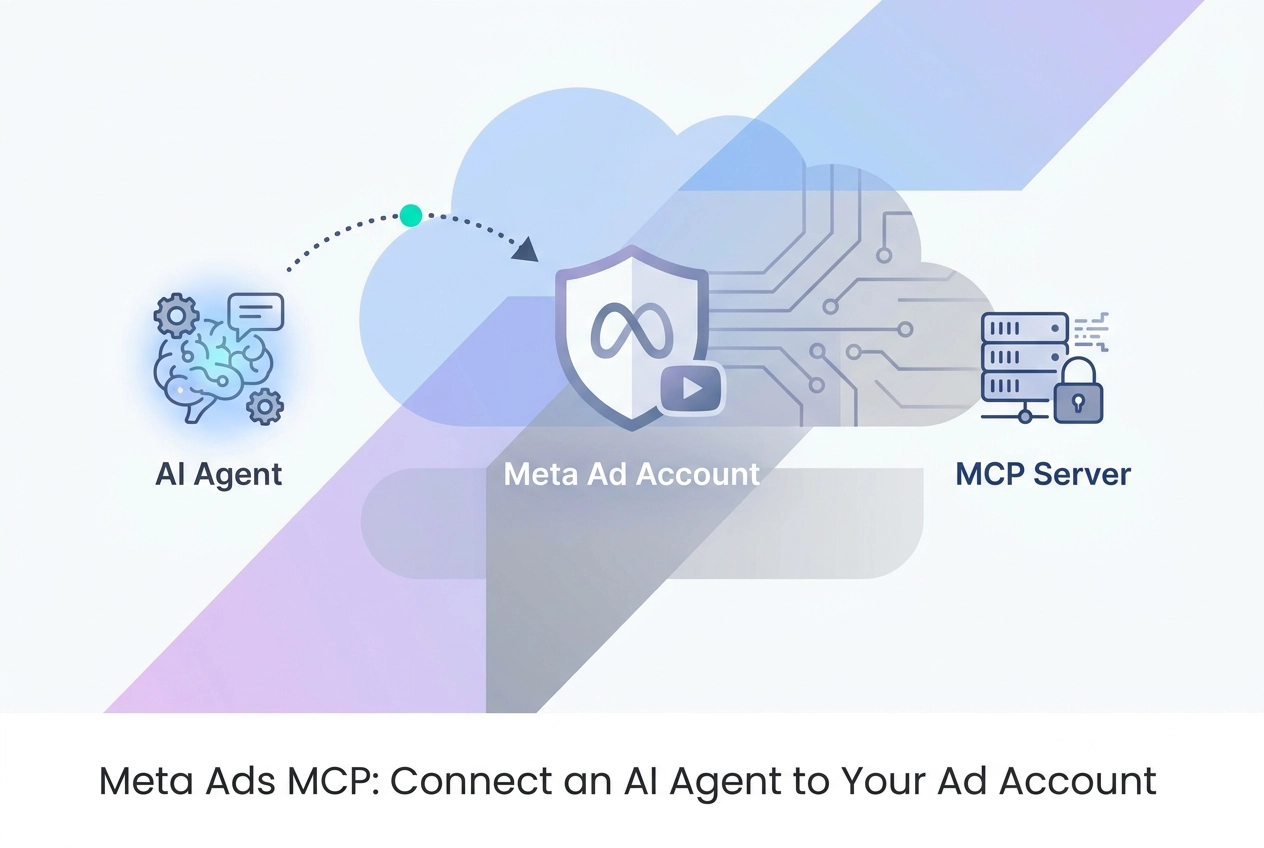
Managing Meta ad campaigns through a conversational AI agent stopped being a workaround the moment Meta shipped a native solution. The meta ads MCP server, hosted at https://mcp.facebook.com/ads, is a formally supported Model Context Protocol implementation that connects AI assistants directly to your ad account through a secure, authenticated bridge. No more copying performance metrics into a chat window or manually transcribing campaign settings.
This tutorial walks through everything you need to put that server to work. You will start with how the MCP layer actually functions and what permissions it exposes, then move through authentication, read-only reporting workflows, and eventually write operations like campaign creation and audience management. Along the way, you will see where the native endpoint differs from third-party implementations, how to handle errors the official docs gloss over, and which governance patterns keep write access from becoming a liability. If you are running Claude, Cursor, ChatGPT, or any other supported platform, the same core setup applies. By the end, you will have a clear path from initial connection to production-ready agent workflows.
What the Meta Ads MCP Server Does
Meta's documented MCP server endpoint is https://mcp.facebook.com/ads, verify the current URL against Meta's official developer docs before connecting. It is not a third-party wrapper and requires no self-hosting. You paste the endpoint into any supported MCP client and the connection is live. If you are new to what that means at the protocol level, what an MCP server actually is explains the mechanics.
Meta's official documentation describes the following capabilities (verify current scope at developers.facebook.com):
Campaign and ad set CRUD (create, read, update, delete)
Creative generation: single image, video, carousel, and Advantage+ catalog carousel formats
Custom audience management and catalog creation
A/B testing and conversion lift studies
Reporting with CPC, CPM, and CTR metrics
Activity log visibility, so the agent can read a full history of account changes alongside live performance data
That last point matters for auditing. The agent is not limited to a snapshot of current state; it can see what changed and when.
Supported clients as of 2026, per Meta's official help documentation: Claude, Claude Code, ChatGPT, Cursor, Perplexity, Grok, and Codex. Seven platforms confirmed.
One default you need to know before you start: new ads created through the server are paused (confirm this behavior in Meta's current MCP server documentation before relying on it as a governance gate). The agent cannot push a live ad without an explicit activation step. This is a deliberate safety gate built into the server, not a bug or an oversight. It means an agent running a creative generation workflow cannot accidentally serve spend on a draft ad. Meta's own announcement covers the reasoning behind this design decision.
Treat the paused-by-default behavior as a feature. Your first task is understanding what the server can see and do; the next section covers authentication and getting the connection working.
Authentication and Connection
To connect an agent to the Meta Ads MCP server, you need a system user token scoped to the specific ad account you want the agent to access. Meta's documentation recommends a system user token for automated access; consult the Business Manager help docs to confirm current token requirements. Create the system user inside Meta Business Manager, assign it to the target ad account, and generate a token with only the permissions the agent actually needs.
The endpoint to paste into any MCP client is:
https://mcp.facebook.com/ads
Verify the current URL against Meta's official developer docs before connecting.
Claude Desktop
Add this block to your settings.json:
{
 "mcpServers": {
 "meta-ads": {
 "url": "https://mcp.facebook.com/ads",
 "headers": {
 "Authorization": "Bearer YOUR_SYSTEM_USER_TOKEN"
 }
 }
 }
}
The same pattern applies to Claude Code running locally. If you have already wired another hosted server into Claude Desktop, the process is identical to what is described in Wiring an Image MCP Server into Claude Desktop or Cursor.
Cursor
In Cursor's MCP settings, add a new server entry:
{
 "name": "meta-ads",
 "url": "https://mcp.facebook.com/ads",
 "headers": {
 "Authorization": "Bearer YOUR_SYSTEM_USER_TOKEN"
 }
}
Token Scoping and Rotation
The token itself is your primary control.
Start with read-only scopes: ads_read and read_insights. Do not add write permissions until you have validated the agent's output through several read-only sessions.
Treat the agent token the same as a CI service account token:
Rotate it on a fixed schedule
Revoke it immediately if the agent produces unexpected calls or outputs
Never reuse a token across multiple agents or ad accounts
Start With Read-Only Workflows
Once the token is scoped and the endpoint is connected, run read-only queries before touching any write tools.
Read-only is the lowest-risk starting point for two reasons: no spend is at risk, and it lets you verify that the agent is interpreting your account structure correctly before it can change anything.
The MCP server exposes performance metrics, the exact available fields depend on the API version. Common targets include CPC, CPM, and CTR.
Practical queries to run first:
Pull last-30-day CPC, CPM, and CTR grouped by campaign
Rank ad sets by ROAS, descending
Surface paused campaigns that had strong performance in the prior 90 days
Flag ad sets where CPM has increased week-over-week
Start with this prompt:
List all active campaigns in account [ID], sorted by last-7-day cost per result descending. Flag any with CPM above the account average.
Check the output carefully. Does the agent return the correct account? Are the campaign names recognizable? Do the numbers match what you see in Ads Manager? If anything looks off, investigate the token scope before continuing.
Read-only also exposes data quality problems you may not know exist. Common findings: campaigns with generic or auto-generated names that break any rule relying on naming conventions, ad sets missing UTM parameters on destination URLs, and ad sets still targeting custom audiences that have since been deleted. None of these cause errors at the read stage, but they will cause failures or misleading results once automation starts writing. Fix them now.
Run the agent-readiness checker against your setup to confirm what your agent can already see before you consider granting write permissions.
Only after the read-only output looks correct and the account data is clean should you move on to write workflows.

Write Workflows and Governance Patterns
Once you're confident the agent reads accurately, the next step is granting write access. Do not do that without guardrails in place first.
Before granting write access, verify that Meta's Ad Account Spending Limit (spend_cap) is available and active for your account type, Meta's API documentation confirms campaign-level caps; confirm account-level cap support against current API reference. If the agent misbehaves, the spending limit is the last line of defense. Set it before you add write permissions to the token.
Also set a daily_budget (field names subject to API version; verify in Meta's campaign management API reference) on every campaign the agent can touch. A lifetime_budget alone is insufficient. An agent rotating through creatives can burn a lifetime budget in hours if nothing constrains daily pace. Both controls need to be in place.
Draft-and-Approval
Start with draft-and-approval. The agent proposes a change (new ad set, creative swap, budget shift), writes it through the API, and the object lands in a paused state. A human reviews and activates it, (the built-in gate described earlier).
Run this pattern for several weeks before moving toward autonomous actions.
Autonomous Workflows
EBITDA-driven budget reallocation, weather-triggered bidding, and creative testing loops are patterns the Marketing API can support in principle. They are also where things go wrong quietly. Move to autonomous-only after you have observed the agent's decision patterns under supervision and confirmed your spend caps are calibrated.
Audit Logging
Log every write action your agent executes: timestamp, action taken, and the reasoning that triggered it. Activity log visibility through the MCP server helps, but treat your own application-level log as the authoritative record. If you need to audit a spend spike or roll back a decision, the MCP surface alone is not enough.
For a reference list of MCP servers with structured governance tooling, browse Moltline Studio's hosted server catalog alongside the native Meta endpoint.
Native Endpoint vs. Third-Party Implementations
The governance patterns above apply to the native endpoint. Your choice of implementation depends on how many platforms your agent needs to reach.
mcp.facebook.com/ads is the official Meta-hosted server. No self-hosting, Meta Business auth, Meta only. If your agent touches a single ad account inside Meta's ecosystem, this is the lowest-friction path.
Composio offers 1,500+ tool integrations with no self-hosting required. It extends your agent's reach across platforms, but it inserts a third-party dependency into your auth chain. Every credential your agent uses passes through an intermediary you do not control.
Adkit covers 8 ad platforms: Meta, Google, TikTok, Reddit, LinkedIn, X, Microsoft Ads, and others. Adkit describes built-in draft and safeguard layers; confirm current feature availability at adkit.so before choosing it for governance-critical workflows. If you manage spend across networks from a single agent, that consolidation has real operational value. The tradeoff is that more platforms mean more surface area to audit, which connects to the same theme explored in The MCP Endpoint Gap in Video Tooling for non-ad tooling stacks.
Pipeboard holds a Meta Business Partner badge and offers a GitHub-hosted implementation. No self-hosting. It is the official integration pathway if your compliance requirements or client contracts require a badged Meta partner in the stack.
Decision rule:
Meta only: use
mcp.facebook.com/adsMulti-platform (Google, TikTok, others in the same session): evaluate Adkit or Composio based on which networks you manage
Require the official Meta partner designation: use Pipeboard
One honest note on third-party options: they layer governance features, draft workflows, and spend safeguards that the native endpoint leaves entirely to you. That is genuinely useful. It also means additional OAuth handling, token storage, and vendor-side logic you cannot inspect directly. Audit what you cannot see before you hand it write access.
Error Handling the Docs Do Not Cover
Governance features differ across implementations, but none of them handle these failure modes for you. These gaps live at the Marketing API layer, and your agent will hit them in production.
The following failure modes are not prominently documented in the MCP-specific guidance available at publication; treat them as production observations rather than confirmed official gaps.
The failure modes below are based on observed Marketing API behavior. Verify current error codes and rate-limit quotas against Meta's official API error catalog and rate-limiting docs before production deployment.
Deleted audience reference. If an agent builds an ad set targeting a custom audience that has since been deleted, the API returns an error. The risk is silent failure: the agent logs the error internally and moves on without creating the ad set. Your agent must surface that error explicitly to the operator, not swallow it. Surface the audience ID in the message so the issue is immediately actionable.
Budget below platform minimum. Meta rejects ad sets with daily or lifetime budgets under the platform minimum and returns a specific error code. Do not let the agent retry on a fixed loop. A tight retry cycle will exhaust your rate limit quota before a human can intervene. Log the error, alert, and stop. Require a corrected budget value before retrying.
Rate limiting. The Marketing API applies standard rate limits. Reporting loops and bulk creative generation are the two workflows most likely to hit quota. A single retry is not enough; implement exponential backoff with jitter. Log each throttled response with a timestamp so you can identify which workflow is the source.
Invalid targeting combinations. Some audience and placement pairings are rejected at the API level. The error messages are specific about what the conflict is. Parse the message text and return it to the agent context so the agent can adjust its parameters. Resubmitting the identical request is a waste of quota and produces no new information.
For a broader breakdown of how these patterns fit into production agent stacks, see Meta AI in 2026: Ads MCP Server and Agent Stack.
What to Do Next
The error patterns above are edge cases to anticipate before you ship. Here is how to sequence everything into working practice.
For campaign reporting and creative drafting, paste https://mcp.facebook.com/ads into Claude, Cursor, or Codex today (verify the current URL against Meta's official developer docs before connecting). Start read-only. No spend risk, and you will immediately see whether the agent interprets your account data correctly.
For write workflows, apply the spending limits and draft-and-approval patterns covered above before granting agent write access.
For multi-platform work, choose Adkit or Composio per the decision rule in the comparison section above.
If you are wiring non-ad tooling into the same agent, Moltline Studio hosts 110 free MCP tools across 22 servers at mcp.moltlinestudio.com. No signup, no API key. Paste the endpoint and the tools are available immediately. Before adding more servers, run the agent-readiness checker to audit what your agent can already see. Start With Free, Audit Before You Commit walks through that audit step.
The governance patterns in this guide are not Meta-specific. Least-privilege tokens, spend caps, draft-and-approval gates, and explicit error surfacing apply to any MCP server that touches production data. Build those habits once; they transfer to every server you add.

Conclusion
Connecting an AI agent to your Meta Ads account is genuinely within reach, but the setup decisions you make early determine whether it saves you hours or creates costly mistakes.
The patterns in this guide, least-privilege tokens, read-first, spend caps, explicit error surfacing, apply to every MCP server you add going forward.
These patterns are not one-time steps. They are the foundation for every MCP server you add going forward, whether that is Meta, Google, TikTok, or any production system.
Your next move is simple. Open your agent, paste the endpoint, and run your first read-only query. See what the agent sees. Verify it interprets your data correctly. Then build from there with confidence.
The infrastructure is ready. Your first connection takes minutes.